
 11
11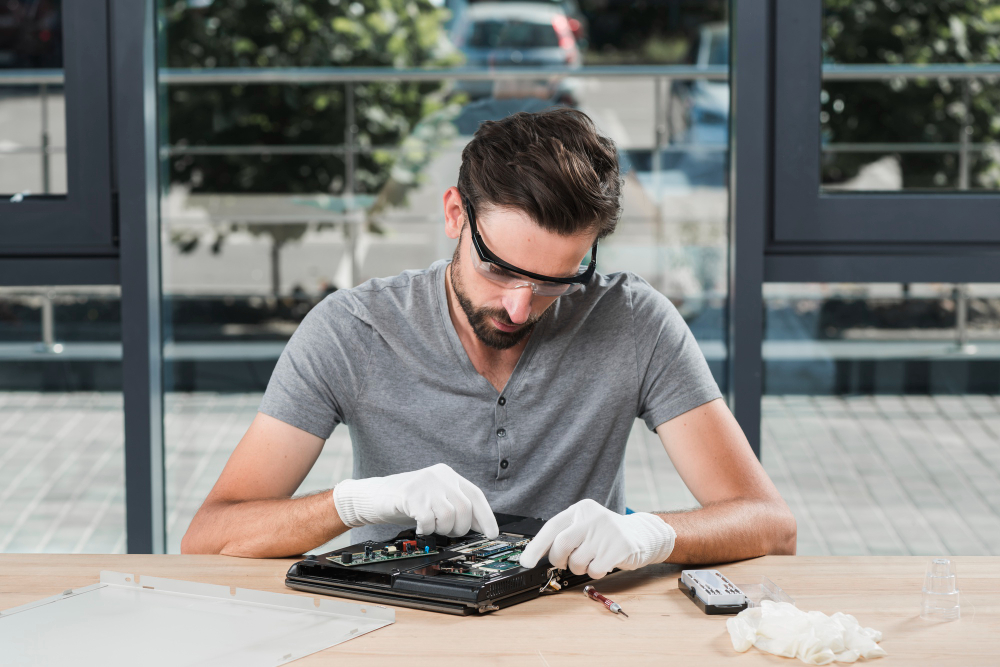
If your laptop has been making strange noises, heating up quickly, or slowing down during regular use, a dusty fan might be the culprit. Over time, dust and debris accumulate inside your laptop, blocking airflow and causing the fan to work harder. Cleaning your laptop fan not only prevents overheating but also improves performance and extends its lifespan.
In this detailed guide, we’ll show you how to clean a laptop fan safely and effectively whether you want a quick surface clean or a deeper internal cleaning.
The fan is one of the most critical components in your laptop’s cooling system. Its job is to draw in cool air and push out hot air generated by the CPU and GPU. When dust builds up inside, it reduces airflow, traps heat, and forces the fan to spin faster and louder.
Cleaning your laptop fan every 3–6 months is a simple maintenance step that can make a huge difference.
Before you start, make sure you have the right tools for the job. Here’s a checklist:
If your laptop’s warranty is still active, check the manufacturer’s guidelines before opening it. Some brands void warranties if you remove the back cover.
Before cleaning, completely shut down your laptop. Disconnect the charger and any connected accessories such as USB drives, external hard disks, or headphones.
If the battery is removable, take it out as well. This prevents accidental power-on and protects internal components from static discharge.
If you want a quick and safe clean without opening the laptop, start by cleaning the vents.
This method helps remove loose dust and improves airflow, though it won’t remove deeper buildup inside the fan.
If your laptop is still noisy or overheating after cleaning the vents, you’ll need to open the back cover for a deeper clean.
Be cautious not to touch delicate parts like the motherboard or ribbon cables.
Optional:
If you’re comfortable with hardware maintenance, you can also remove the fan for more thorough cleaning. Simply unscrew it from the motherboard, clean the blades individually, and reinstall it.
After cleaning, double-check that:
Reinstall the battery (if removed) and reconnect your charger. Turn on your laptop and listen for the fan it should now run quieter and more efficiently.
While you’re at it, it’s a good idea to clean other parts of your laptop to maintain performance:
Keeping the entire laptop clean improves airflow and prevents future dust buildup.
Even with good maintenance, you might notice performance drops after a while. Here are signs your fan needs cleaning again:
These are all warning signs of restricted airflow and dust accumulation.
Knowing how to clean a laptop fan is an essential skill for any computer user. It’s one of the simplest ways to prevent overheating, improve performance, and prolong your device’s life. Whether you choose a quick surface clean or a deep internal cleaning, the results are immediate quieter operation, smoother performance, and cooler temperatures.
By taking 20–30 minutes every few months to maintain your laptop fan, you’ll keep your system running efficiently for years and avoid costly repairs down the road.
So grab your tools, follow these steps, and give your laptop the breath of fresh air it deserves!
Also Read: How to Use AirDrop from iPhone to Mac